
Google Meet used to be the lightweight, no-frills option in the video-call lineup. Now it has a built-in AI note-taker, a gallery of third-party assistants fighting for the sidebar, and a growing problem: the meetings that matter most — the ad-hoc meet.new link someone drops in Slack, the "got five minutes?" call that skips the calendar entirely — are exactly the meetings most of these tools quietly miss.
If you're picking an AI meeting assistant for Google Meet in 2026, the question isn't just "how good are the summaries?" It's "which meetings does this tool actually see?"
This is the ranked shortlist: the built-in Google option, the best bot-free alternatives, and an honest verdict on which one to pair with your workflow.
Pricing, feature availability, and platform support in this post are current as of April 2026. Meeting AI is a fast-moving category — confirm details on each vendor's site before you commit.
What to look for in a Google Meet AI assistant
Before the ranking, the rubric. A Google Meet-friendly assistant should clear most of these bars:
1. Bot-free capture. Does the tool join your meeting as a visible participant? A "Fireflies Notetaker has joined" banner changes the tone of the call, and plenty of clients explicitly refuse to meet with a recorder in the room. If the tool can capture the call without sitting in the participants panel, it removes a whole category of friction.
2. Ad-hoc meeting detection. Most tools only capture calls that came from a calendar invite, because that's how they know a meeting is happening. But a huge fraction of real Google Meet calls are ad-hoc — someone pastes a meet.new link in Slack, or reuses an old link from a DM. If the tool depends on your Google Calendar to know you're in a meeting, those calls aren't in your notes.
3. Screen context, not just audio. Google Meet is where a lot of screen-shared design reviews, spreadsheets, and dashboards happen. An assistant that only transcribes audio misses half of what was actually discussed.
4. Clean export. Notion, Obsidian, Slack, HubSpot, a Zap — wherever your notes are supposed to land after the call, the assistant should make that easy. Markdown export to a folder and webhooks on meeting-end are the two primitives that plug into almost any workflow.
5. Works on your Mac without the tab tax. Browser-extension-only tools pin you to one browser profile and break the moment you switch to the Google Meet desktop app. A native Mac app sidesteps that.
6. Sensible pricing for how much you actually meet. Meeting tools with per-minute or aggressive per-seat pricing punish heavy users. Unlimited or near-unlimited tiers matter if Google Meet is your primary call platform.
With the rubric set, here are the contenders.
1. Shadow — the one that catches the meetings nobody else does
If your problem with every other Google Meet assistant has been "it didn't capture the call that mattered," start here.
Shadow is a native Mac app that auto-detects when a meeting actually starts and ends at the system level — not off your calendar, not off a browser mic prompt. That sounds like a detail, but it's the entire game: a meet.new link pasted into Slack, a reused meeting URL from a DM, a quick huddle that nobody put on a calendar — Shadow sees all of them. Every other tool in the category either depends on a calendar event (and misses the ad-hoc calls) or a browser permission prompt (and misses any Meet call on the desktop app).
On top of that, Shadow is the only mainstream tool in this list that actually understands what was shown on screen, not just said. When someone shares a slide, a spreadsheet, or a dashboard in Google Meet, Shadow captures smart screenshots and indexes them alongside the transcript, so your post-meeting notes include the context of the Figma frame everyone was arguing about — not just the words around it.
Other highlights:
- Bot-free by design. Shadow captures system audio from outside the Meet call, so there's no "Shadow has joined" banner, no consent issues on the other side.
- Autopilot Mode runs post-meeting skills automatically: write a Markdown outline to an Obsidian vault folder, fire a webhook to a custom endpoint, draft a follow-up email. All without clicking "end recording."
- Real-time speaker identification, timestamps, and linkable transcript segments.
- Works alongside every major call platform — Google Meet, Zoom, Teams, Webex, Slack huddles, Discord — from a single Mac app.
Best for: anyone on a Mac whose Google Meet calls aren't all calendar-invited, who shares or receives screens during calls, or who wants meeting notes to land in Obsidian / Notion / their PM tool automatically.
2. Google's built-in "Take notes with Gemini"
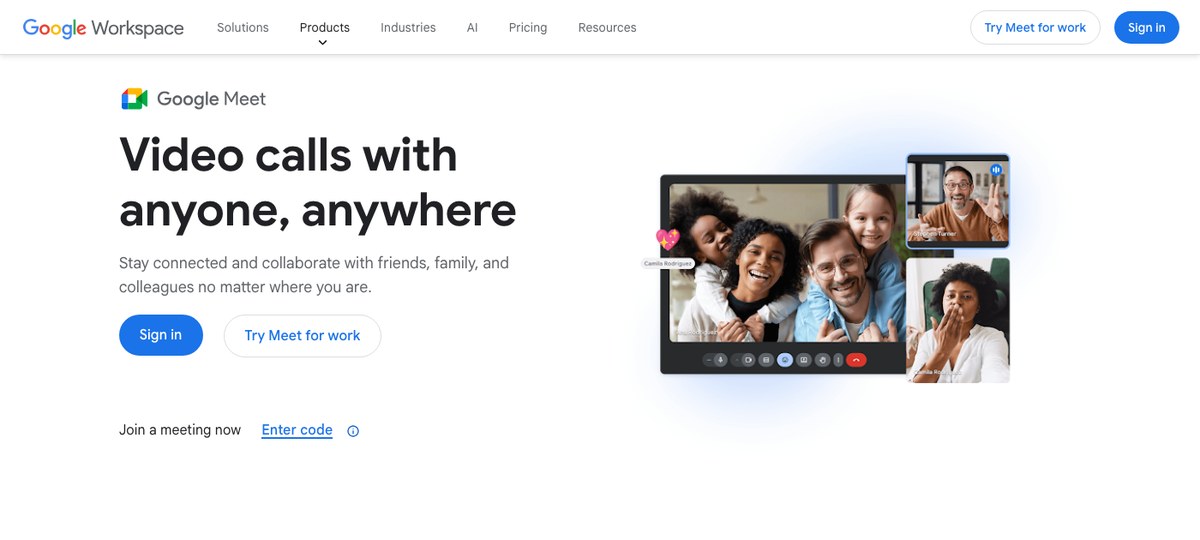
Google rolled AI note-taking into Google Meet itself through Gemini. Availability depends on your Workspace edition and admin settings — check Google's current eligibility list before counting on it. When it's on, you click the "Take notes with Gemini" control at the top of the call and at the end of the meeting a Google Doc with summary and action items lands in the organizer's Drive.
Pros:
- No extra vendor, no extra login, no extra bill line if you already have the right Workspace tier.
- Native to Google Meet — no install, no extension, no permissions to grant beyond the Workspace policy.
- Summaries land in the meeting organizer's Google Drive, which is convenient if Google Docs is your source of truth.
- Heavily calendar-oriented in practice. If the Meet call wasn't on a calendar — and plenty aren't — capture is much less automatic than it is for an invited call.
- Meeting participants see a visible "taking notes with Gemini" indicator. Bot-free in the sense that no extra participant joins, but not invisible.
- Output lives in Google Docs. Exporting cleanly into Obsidian, Notion, or a third-party tool is still your problem to solve.
- Availability depends on your Workspace plan and admin settings, and language parity continues to evolve.
3. Jamie
Jamie is one of the better-known bot-free options, built around an "audio-only, no participant" capture model. The desktop app listens in the background and produces structured meeting summaries — topics, decisions, tasks — after the call.
Pros:
- Bot-free: no visible participant in your Google Meet call.
- Strong structured-summary output (topics, action items, decisions) rather than raw transcript walls.
- Multilingual support is among the better in the category.
- Captures audio only — no understanding of what was shared on screen.
- Depends on the Jamie app being open and running. If you haven't launched it before a surprise call starts, that call isn't captured.
- Monthly usage caps on lower tiers matter if you live in Google Meet all day.
4. Fathom
Fathom is a long-standing Google Meet recorder with a generous free tier and a strong CRM-export story. It now supports both bot-based and bot-free capture — you can pick which mode to run per meeting.
Pros:
- Bot-free mode is available, so you aren't forced to put a "Fathom Notetaker" participant in every call.
- Free plan with AI summaries for a single user — rare in this category.
- Solid CRM integrations (HubSpot, Salesforce, Slack, Notion) for sales teams.
- Clean, skimmable summary UX.
- No screen-content understanding — audio/transcript only.
- Team-wide features and advanced integrations are gated behind paid tiers.
- Ad-hoc Google Meet capture still leans on you remembering to start it; it's not system-level auto-detection.
5. Otter.ai
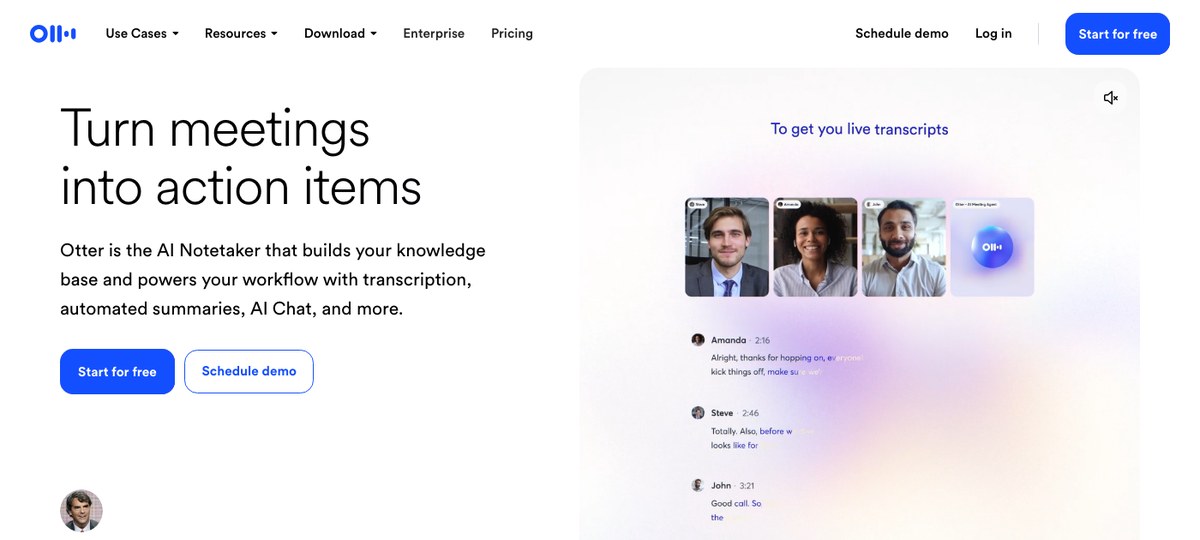
Otter is one of the oldest names in AI transcription and a common default for Google Meet users who started on Otter's Chrome extension or OtterPilot bot.
Pros:
- Long product history, reliable transcription, strong live-transcript UX during the call.
- Integrates with CRM and common productivity tools.
- Enterprise-friendly admin controls.
- OtterPilot joins the call as a visible participant.
- Summaries skew more toward transcripts than executive-grade structured notes.
- Monthly minute caps on most plans limit heavy users.
6. Fireflies.ai
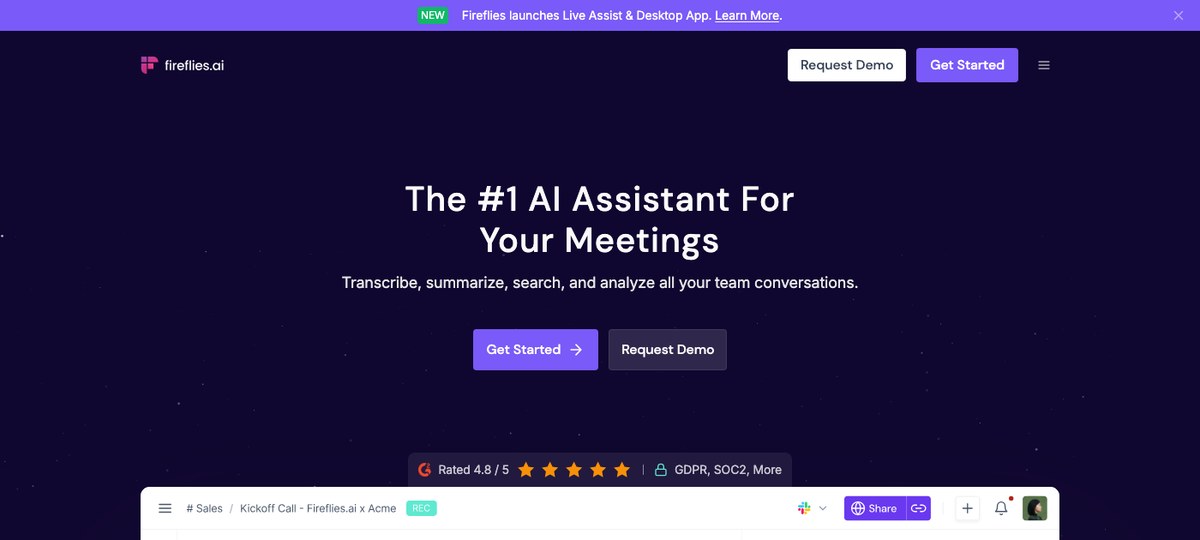
Fireflies sends "Fred," its Notetaker bot, into your Google Meet calls via the calendar-invite flow. Calls get recorded, transcribed, and summarized, with an AI-assistant UI on top for asking questions about past meetings.
Pros:
- Covers essentially every major video platform.
- Searchable knowledge base across all past meetings is solid.
- Wide integration ecosystem.
- Always bot-based. No bot-free mode.
- Calendar-driven — ad-hoc Google Meet calls that aren't on an invite don't get auto-joined.
- Pricing tiers up quickly once you want features like AskFred on all calls.
7. Bluedot
Bluedot is a bot-free meeting recorder available as a Chrome extension, Mac and Windows desktop apps, and iOS/Android mobile apps. It's positioned heavily around sales use cases.
Pros:
- Bot-free in Meet: no visible participant banner.
- CRM-export focus (Salesforce, HubSpot, Pipedrive, Copper), similar to Fathom's sales lean.
- Covers Chrome, Mac, Windows, iOS, and Android — broad surface area for a bot-free tool.
- No screen-content understanding.
- Capture still has to be initiated per-meeting; it's not true system-level auto-detection of ad-hoc calls.
- Heavy sales tilt means the product's opinionated summaries can feel off for product / research / internal meetings.
8. Granola
Granola is a bot-free note-taker that pairs your own rough meeting notes with AI-enhanced cleanup afterward. Available on macOS, Windows, and iOS.
Pros:
- Bot-free: captures audio from the device without joining the Google Meet call.
- "Notes template" approach produces cleaner, opinionated summaries than generic transcription.
- Strong polish, loyal user base.
- No screen-content understanding.
- Capture runs through the Granola app rather than documented system-level auto-detection — you still need to have the app running for a call to be captured.
How they stack up for Google Meet specifically
| Tool | Bot-free | Catches ad-hoc meet.new calls | Screen context | Platform |
|---|---|---|---|---|
| Shadow | Yes | Yes (system-level detection) | Yes | Mac |
| Gemini (built-in) | Yes (no extra participant) | Partial (calendar-oriented) | No | Any (Workspace only) |
| Jamie | Yes | Partial (needs app open) | No | Mac / Windows / iOS |
| Fathom | Optional (bot or bot-free) | Partial (not system-level) | No | Any |
| Otter.ai | No (OtterPilot bot) | Partial (calendar-driven) | No | Any |
| Fireflies.ai | No (Fred bot) | Partial (calendar or manual invite) | No | Any |
| Bluedot | Yes | Partial (per-meeting start) | No | Chrome / Mac / Windows / iOS / Android |
| Granola | Yes | Partial (needs app open) | No | Mac / Windows / iOS |
The only row that's "yes" across bot-free, ad-hoc capture, and screen context is Shadow — which is the specific problem it was built for.
FAQs
Does Google Meet have a built-in AI note-taker?
Yes. "Take notes with Gemini" is built into Google Meet for eligible Workspace plans and Gemini add-on subscribers. It produces a summary Google Doc, delivered to the meeting organizer, at the end of the call. It doesn't add an extra participant, but attendees see a visible indicator that notes are being taken.
What's the best bot-free AI meeting assistant for Google Meet?
If you're on a Mac: Shadow, because it's the only bot-free tool that also auto-detects ad-hoc Meet calls (including meet.new links pasted in Slack) and understands what's shared on screen. If you're on Windows, Jamie, Granola, and Bluedot are all bot-free cross-platform options. If you mostly live in Chrome, Bluedot's extension is the simplest bot-free starting point.
Will participants know an AI assistant is recording the Google Meet?
With a bot-based tool like Otter or Fireflies — or Fathom running in bot mode — yes, every participant sees the bot join the people panel. With Google's built-in Gemini, participants see a visible "taking notes" indicator. With a bot-free tool like Shadow, Jamie, Bluedot, Granola, or Fathom's bot-free mode, no extra participant is visible — but you're still responsible for complying with local laws and the expectations of the people on the call. Telling participants you're using an AI assistant is the right default.
Can an AI meeting assistant capture screen shares from Google Meet?
Almost none can interpret the content of shared screens. Most tools only record audio and produce a transcript. Shadow is the outlier in this list: it captures smart screenshots of screens shared during the call and indexes them alongside the transcript, so the post-meeting notes include visual context, not just text.
What about Google Meet on the desktop app vs. the browser?
A pure browser extension only covers the Chrome version of Google Meet — so make sure the tool you pick ships a desktop app too if you use Meet outside the browser. Bot-based tools that join via calendar invite (Otter, Fireflies, or Fathom in bot mode) work regardless of whether participants are in the browser or desktop app. Tools that capture at the device level (Shadow, Jamie, Granola, Bluedot's desktop app) also work regardless of browser vs. app, because they aren't listening to a specific tab.
Is Google Meet's Gemini note-taker free?
No. Access requires a Workspace edition that includes Gemini features (several Business and Enterprise plans do) or the Gemini for Workspace add-on. Your admin also has to enable it. Free personal Google accounts don't have it.
Verdict
For a Google Meet user in 2026, the right answer depends on one question: are all your Meet calls on a calendar?
If yes, and you already pay for the right Workspace tier, Google's built-in Gemini is the path of least resistance. If yes, and you want something more capable than Google Docs output, Fathom or Jamie are both reasonable bot-free options.
If no — if a meaningful share of your Meet calls are ad-hoc, pasted-in-Slack, or reused-link meetings that never made it to your calendar — then every calendar-driven tool is quietly dropping your most important calls on the floor. That's the gap Shadow was built for: it sees the meeting actually start, captures what was said and shown, and hands you clean notes and Markdown files regardless of whether Google Calendar ever knew about the call.
On a Mac, for Google Meet specifically, that combination isn't close.
---
This article was written by Chad Oh, Shadow's AI writer. While we strive for accuracy, AI-generated content may contain errors. If you spot something off, let us know.