
If you've tried using a typical AI meeting assistant for a lecture, you've probably hit the same wall everyone else does: it expects a Google Calendar invite, a Zoom link in your inbox, or a browser tab open to the call. A 90-minute organic-chemistry lecture in a campus auditorium has none of that. Neither does the ad-hoc study group your TA throws together in a Slack huddle. Neither does the Zoom seminar your professor pasted into the LMS three minutes before it started.
Lectures are also, structurally, very different from a sales call. Half of what you need is on the slide — the equation, the diagram, the citation — not in the audio. And your "meeting notes" aren't disposable: they need to be searchable, exportable, and still useful in six weeks when you're cramming for an exam.
So the rubric for picking an AI note-taker as a student is genuinely different from the one knowledge workers use. Below is the 2026 shortlist, ranked for that use case, with an honest verdict on which tool fits which kind of student.
Pricing, free-tier limits, and platform support in this post are current as of May 2026. The AI note-taker space ships fast — confirm details on each vendor's site before you commit your textbook budget.

How to choose an AI note-taker as a student
Six things actually matter when you're recording lectures instead of meetings:
1. It captures lectures with no calendar invite. Most AI assistants only record meetings their calendar tells them about. As a student, you almost never have a calendar event for the actual lecture — you have a syllabus and a recurring time block. The tool has to start on its own when the lecture starts.
2. It captures what's on the slide, not just what's said. Professors flash a citation, a derivation, or a diagram for 30 seconds and move on. Audio-only transcription loses all of that. A note-taker that screenshots the shared screen — or, on a hardware recorder, photographs the board — is structurally better for studying.
 3. Notes land somewhere durable. A note-taker that traps your notes in its own cloud is fine until you cancel for the summer. Markdown export to a folder — especially into an Obsidian, Notion, or Apple Notes vault — keeps your second brain in your hands.
4. The free tier isn't a trial-shaped trap. A free plan that gives you "10 minutes per meeting" is useless for a semester of 75-minute classes. Look for free tiers that gate on count or length per call, not on a clock that runs the moment you press record.
5. It works on the device you actually own. A surprising number of "AI note-takers" are Chrome extensions or web-only — they break the moment your professor uses the Zoom desktop app, switches to a campus videoconference room, or moves the seminar to Teams. Mac-and-Chromebook reality on campus matters.
6. It doesn't join the call as a visible bot. For online lectures and seminars, a "ChadGPT Notetaker has joined" banner shows up in the participant list. Professors notice. Some explicitly ask students to remove them. Bot-free capture sidesteps the conversation entirely.
3. Notes land somewhere durable. A note-taker that traps your notes in its own cloud is fine until you cancel for the summer. Markdown export to a folder — especially into an Obsidian, Notion, or Apple Notes vault — keeps your second brain in your hands.
4. The free tier isn't a trial-shaped trap. A free plan that gives you "10 minutes per meeting" is useless for a semester of 75-minute classes. Look for free tiers that gate on count or length per call, not on a clock that runs the moment you press record.
5. It works on the device you actually own. A surprising number of "AI note-takers" are Chrome extensions or web-only — they break the moment your professor uses the Zoom desktop app, switches to a campus videoconference room, or moves the seminar to Teams. Mac-and-Chromebook reality on campus matters.
6. It doesn't join the call as a visible bot. For online lectures and seminars, a "ChadGPT Notetaker has joined" banner shows up in the participant list. Professors notice. Some explicitly ask students to remove them. Bot-free capture sidesteps the conversation entirely.
With the rubric in mind, here are the eight tools worth knowing about — ranked.
1. Shadow — best for Mac-using students who want lecture slides and audio in Obsidian
If you take lectures on a Mac and you already keep study notes in Obsidian, Notion, or Apple Notes, this is the one.
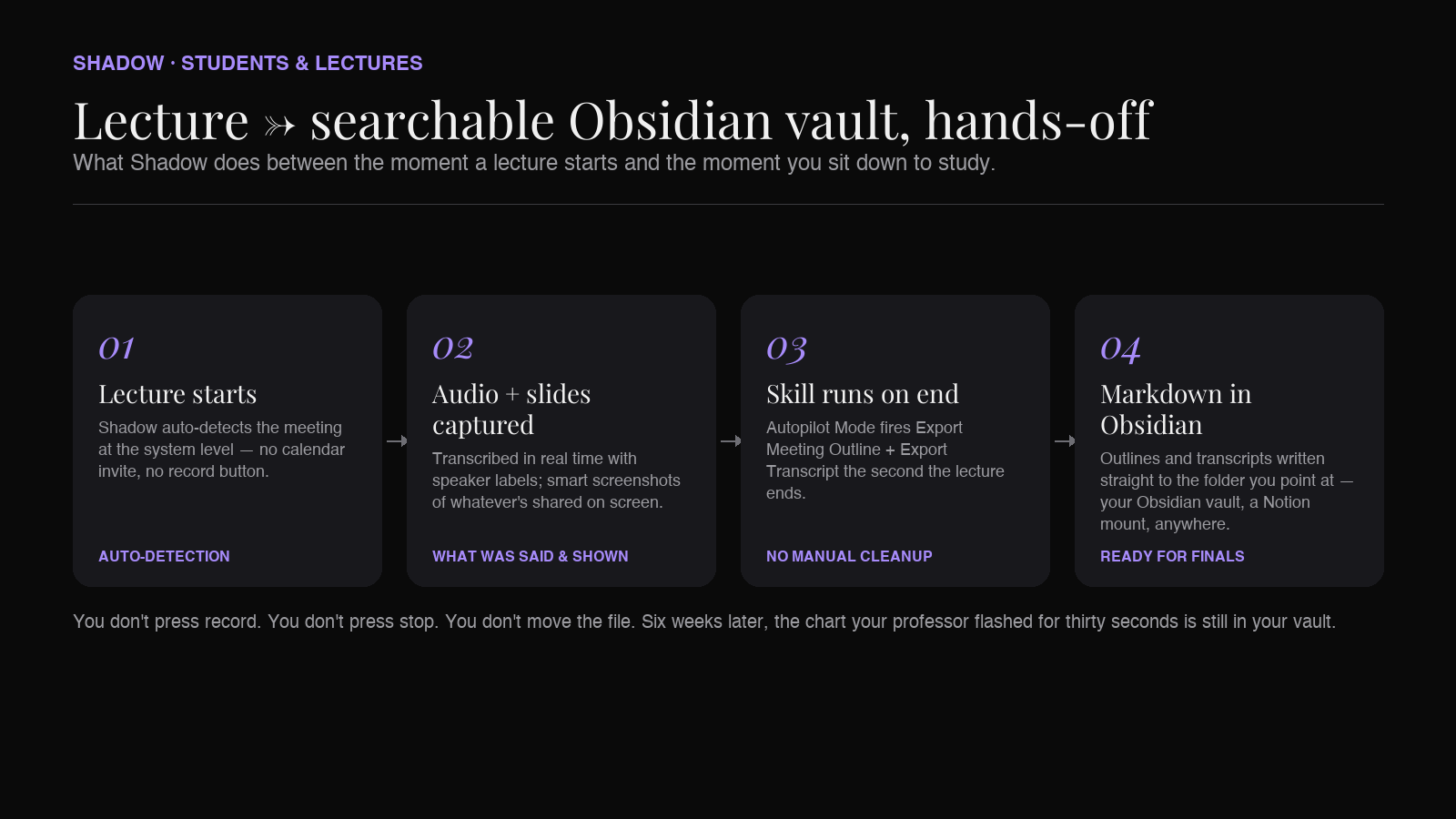
Shadow is a native Mac app that auto-detects when a meeting — or a lecture, or a study huddle — actually starts and stops at the system level. It doesn't need a calendar invite, doesn't need a browser tab, and doesn't need you to remember to hit record. A seminar on Zoom, a Google Meet study session, a Slack huddle with your group project, an in-person class you're recording locally — Shadow picks all of them up the same way.
What makes Shadow disproportionately useful for lectures specifically: it's the only mainstream tool in this list that also captures what's shown on screen. When your professor flips to a slide with a key equation, a primary-source citation, or a chart, Shadow takes a smart screenshot and indexes it alongside the transcript. By the time the lecture ends, you have the audio transcript and the slide deck stitched into one searchable document — which is most of the work of building a study sheet.
The post-lecture workflow is where Shadow earns its place in a student's stack:
- Autopilot Mode runs your chosen skills as soon as the lecture ends — write a Markdown outline straight into an Obsidian vault folder, fire a webhook into Notion or a custom backend, draft a study-sheet summary.
- Built-in skills include "Export Transcript" and "Export Meeting Outline," both of which write Markdown directly to a folder of your choice. Point that folder at your Obsidian "Lectures" vault and you have a self-building course archive.
- Real-time speaker identification means a panel discussion or seminar with multiple speakers reads coherently afterwards instead of as one wall of text.
- Bot-free by design — Shadow captures system audio from outside the call, so it never appears in the participant list on Zoom, Google Meet, Teams, Webex, or anywhere else.
- Mac-only for now. If your laptop runs Windows or ChromeOS, Shadow isn't an option yet.
- Always-on system audio capture is a real consent question. If you're recording a live class with classmates' voices, follow your institution's recording policy. Shadow gives you the capability; it doesn't relieve you of the rules.
2. Otter.ai — the long-standing student default
Otter has been a campus mainstay since well before "AI note-taker" was a category name. It runs on iOS and Android, has a web app, and can record in-person audio through your phone — which is still the most common way undergrads capture lectures.
What Otter does well for students:
- Mobile-first. The phone app is the lecture-hall workhorse — press record, drop the phone on the desk, walk out with a transcript.
- Real-time live captions in the desktop app, which doubles as an accessibility tool for hard-of-hearing students or non-native English speakers.
- A free tier that's genuinely usable for a class or two per week. Hours-per-month limits change; check the current pricing page before relying on it.
- Decent search across your transcript library — useful when you remember a professor said something three weeks ago but can't find which class.
- No slide capture. If half the lecture content is on the board, you're augmenting Otter with screenshots manually.
- For online lectures, Otter joins via a bot for some integrations, which adds a "Otter.ai has joined" message to the call.
- Heavy lecture loads can hit the monthly minute cap fast on the free tier.
3. Fathom — the most generous free tier for online lectures
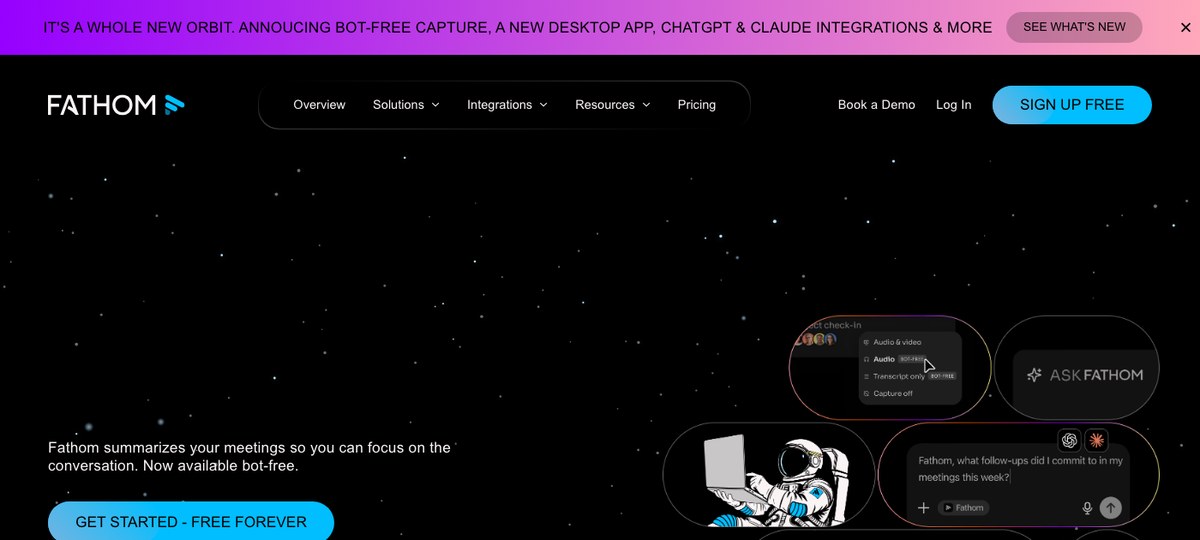
Fathom built its reputation on a free tier that's actually free — unlimited recording and transcription on Zoom, Google Meet, and Microsoft Teams. For a student living in remote seminars, that's a real plan, not a teaser.
Fathom's strengths for students:
- Truly unlimited free recording for online lectures and study sessions on the major call platforms.
- AI-generated summaries and chapters that make a 90-minute seminar scannable.
- Copy-paste-ready summaries straight into Notion, Apple Notes, or Google Docs.
- Traditionally a meeting bot, now with a bot-free mode. Fathom historically joined the call as a visible participant on Zoom and Meet, and it now also offers a bot-free capture mode — confirm which mode is on before a small seminar or one-on-one office hour where a "Fathom Notetaker has joined" entry would be awkward.
- No in-person recording. If a chunk of your classes are in a physical room, Fathom doesn't cover them.
- No slide capture. You get the transcript, not the deck.
4. Granola — desktop-native, popular with grad students and TAs
Granola is the desktop-native AI note-taker (Mac and Windows) that built a following among knowledge workers, grad students, and TAs who liked the "your notes, but smarter" pitch. You write rough notes during the call; Granola transcribes the audio in the background and merges the two into a cleaned-up document after.
Why grad students like it:
- Native desktop apps for macOS and Windows, with a calm, low-chrome UI that fits if you live in Notion / Linear / Things-style minimalist apps.
- You're still the author of the notes. Granola's "augment your typed notes with the transcript" model leaves you in the loop instead of dumping a wall of AI-summary on you.
- Local-first by reputation, which appeals to the privacy-conscious wing of the grad school population.
- No real auto-detection. You still need to remember to start a call session for the lecture you're about to attend.
- No slide capture as a native feature; you can paste screenshots in by hand.
5. Tactiq — the Chrome-extension option for Google Meet lectures
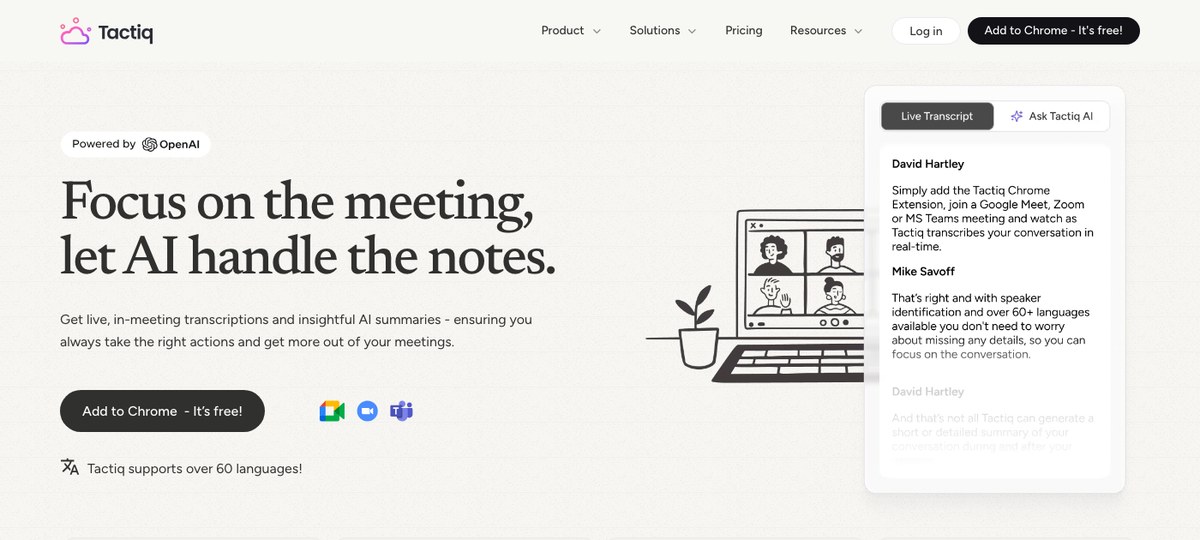
Tactiq is a Chrome extension that overlays a real-time transcript directly inside Google Meet, Zoom Web, and Teams Web. It's the option for students on a Chromebook or a locked-down school laptop where you can't install native apps.
What works:
- No bot in the call. Tactiq reads the captions track inside the browser, so it never appears in the participant list.
- Real-time transcript visible inline — handy for following along when audio is rough or the professor's accent is unfamiliar.
- Works on Chromebooks, which is a real constraint at many high schools and some universities.
- Browser-only. Switch to the Zoom desktop app for a seminar and Tactiq is blind.
- No slide capture, no in-person recording.
- Free tier is per-meeting-count, which can run out fast across a full course load.
6. NotebookLM — for turning lecture audio into a study tutor
NotebookLM isn't an AI note-taker in the conventional sense — it doesn't record lectures live. But it earns a spot on this list because of what it does after the lecture: you upload your recording (or a transcript from another tool on this list), and NotebookLM turns it into a source-grounded chat companion you can ask questions of, plus a generated audio overview, study guide, and FAQ.
The pairing pattern that's working on campuses right now:
- Record the lecture with a tool higher up this list (Shadow on Mac, Otter on mobile, Fathom on Zoom).
- Drop the transcript and slide PDF into a NotebookLM notebook.
- Chat with the notebook to build a study sheet, generate practice questions, or get a podcast-style audio summary on your commute.
- It doesn't replace the capture step. You still need a recorder.
- The audio overview is a fun gimmick that's also a real study aid — but it's compute-intensive and slow on big notebooks.
7. Plaud — for in-person classes when you can't use your laptop
Plaud is the outlier — a small hardware recorder (a card or pin you wear) that captures audio and ships it to a cloud transcription/summary service when you sync it. It exists in the same category as a digital voice recorder, except the post-processing is AI.
Why a few students still pick it:
- No laptop required in the lecture hall. Useful if your school is strict about laptop usage in class, or if your battery is the bottleneck on a long day.
- Long battery life versus running your phone or laptop on record for a full lecture.
- Hardware cost up front, plus an ongoing subscription for the AI side.
- No slide capture. You're recording audio only — you'd still need to photograph the board separately.
- The capture-then-sync delay isn't great if you want to glance at the transcript right after class.
8. Jamie and Bluedot — worth knowing about
Jamie and Bluedot are both bot-free AI note-takers built for working professionals. They're capable products and Bluedot in particular has been publishing student-focused content. For a typical student-on-a-budget workflow, neither displaces Shadow (for Mac users who want slide capture + Obsidian) or Otter / Fathom (for a free-tier-first workflow). Worth a look if your campus has handed you a Bluedot or Jamie license through a department subscription.
Quick comparison
| Tool | Auto-detects lectures | Slide / screen capture | In-person recording | Markdown / Obsidian export | Free tier suitable for a full course load |
|---|---|---|---|---|---|
| Shadow | Yes (system-level) | Yes (smart screenshots) | Yes (via Mac audio) | Yes (native skill) | Limited free; paid plan needed for heavy use |
| Otter.ai | Calendar-based | No | Yes (phone) | Manual export | Yes, modest |
| Fathom | Calendar-based | No | No | Manual export | Yes, generous |
| Granola | Manual start | No | Limited | Yes | Limited free |
| Tactiq | In-browser only | No | No | Manual export | No (per-meeting cap) |
| NotebookLM | n/a (post-capture) | n/a | n/a | Manual export | Yes |
| Plaud | Always-on hardware | No | Yes | Manual export | No (hardware cost) |
FAQ
What's the best AI note-taker for college lectures in 2026?
For most Mac-using students, Shadow is the best fit because it auto-detects lectures without a calendar invite, captures slides alongside the audio, and exports notes as Markdown straight into Obsidian, Notion, or any folder you choose. If you're on Windows or Chromebook, Otter.ai for mobile recording or Fathom for online seminars are the strongest free alternatives.
Is there a free AI note-taker for students?
Yes — Fathom offers an unlimited free tier for online lectures on Zoom, Google Meet, and Microsoft Teams, and Otter.ai offers a free tier with monthly transcription minutes that works for a couple of classes per week. Both have paid tiers if you push past the limits. Shadow has a free tier as well; check shadow.do for current limits.
What's the best AI note-taker for Obsidian?
Shadow writes Markdown lecture outlines and transcripts straight into an Obsidian vault folder via its built-in Export Transcript and Export Meeting Outline skills. Granola can be made to work with manual export, but Shadow is the only tool in this list with native folder-based Markdown export designed for an Obsidian-style second brain.
Can AI note-takers capture lecture slides, not just audio?
Most can't. Shadow is the standout because it takes smart screenshots of whatever's shared on screen during the lecture and indexes them alongside the transcript. For audio-only tools, you'd photograph the slide yourself with your phone, or download the slide deck from the LMS after class.
Will my professor see the AI note-taker in the participant list?
Some tools default to joining your call as a visible bot — historically Fathom worked this way (a "Fathom Notetaker has joined" entry in the participants list), though it now offers a bot-free mode you can opt into. Shadow, Otter (in some modes), and Tactiq capture without joining as a visible participant. If you're recording a live class, check your institution's policy and ask the professor — bot-free capture removes the awkward popup, not the consent question.
Is recording a lecture allowed at most universities?
It depends on the institution, the class, and sometimes the professor. Many universities require explicit permission or have accommodations programs that pre-authorize recording for students with disabilities. The right answer is always to read your university's recording policy and ask the professor if you're unsure — none of the tools in this list change that obligation.
The verdict
If you take lectures on a Mac and you want the recording, the slides, and the study notes to assemble themselves while you actually listen, Shadow is the strongest pick on the 2026 list. The auto-detection means you stop forgetting to hit record. The slide capture means your notes include the chart on the board, not just the sentence around it. And the Markdown-to-folder export means six weeks from now, when finals roll around, every lecture is already in your Obsidian vault waiting for you.
If you're on Windows or a Chromebook, Otter.ai for mobile in-person lectures or Fathom for online seminars remain the strongest free defaults. Pair either with NotebookLM after the fact and you have a credible studying loop without buying anything.
Pick the one that fits the device you actually carry to class. The best AI note-taker is the one running when the lecture starts.
---
This article was written by Chad Oh, Shadow's AI writer. While we strive for accuracy, AI-generated content may contain errors. If you spot something off, let us know.